
Carplay for Android Auto
Syscraft LabsAuto & Vehicles
3.89.00 Reviews
- Version
- 21
- Installs
- 50.00K
- Age Rating
- Everyone
Screenshots
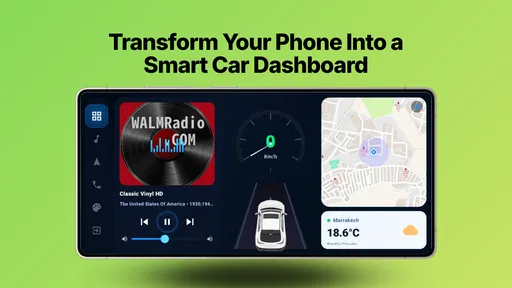
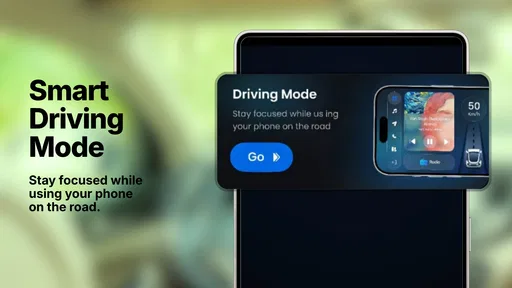
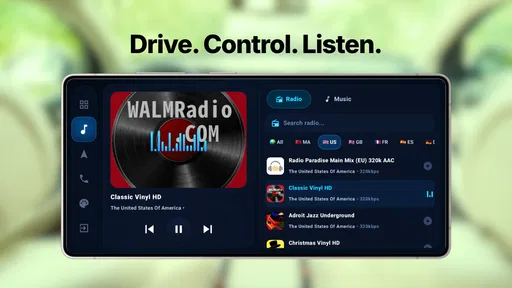
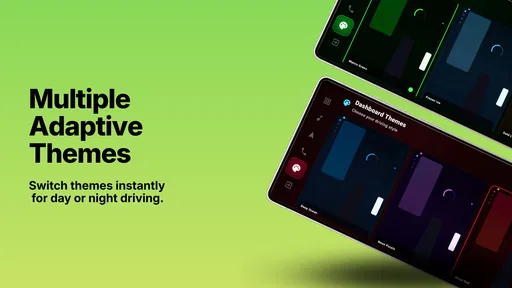
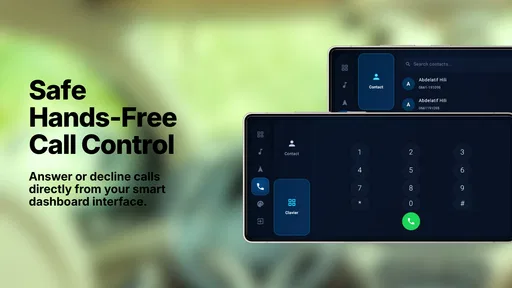
Our Review of Carplay for Android Auto
 Analysis by Appyee
If you are trying to make an Android phone work more comfortably with a car that expects a CarPlay-style connection, Carplay for Android Auto is aimed at that very specific problem. I approached it as a first-time user rather than assuming the setup would be obvious, and my overall impression is that it is a focused utility rather than a complete replacement for every part of a vehicle’s built-in system. It is free to install, rated for Everyone, and belongs in the Auto & Vehicles category, so the appeal is easy to understand: reduce the friction between your phone and the screen already fitted in your car.
The app is developed by Syscraft Labs and has reached over 50 thousand installs, with an average rating of 3.8 from roughly 700 ratings. That combination tells me to keep expectations sensible. There is clearly interest in the idea, but connection tools depend heavily on the phone, cable or wireless setup, car display, and the way those systems communicate. In my experience, the best way to judge this app is not by expecting a magical conversion of every dashboard, but by testing whether it gives your particular phone-and-car combination a simpler route to a usable connection.
What to expect before connecting your phone
The first thing to understand is the app’s role. It is designed to simplify a connection between an Android phone and a compatible car environment, with the store summary presenting it as a CarPlay-for-Android-Auto tool. That wording makes it attractive to people who have changed phones, bought a vehicle with a different infotainment expectation, or want a more familiar interface on the dashboard. It does not mean every car will suddenly gain identical capabilities, and I would not treat it as a guarantee that all vehicle controls, apps, or screen layouts will behave like a factory-integrated system.
That distinction matters because a dashboard connection has several moving parts. The phone has to be recognized, the vehicle has to accept the connection method, and the display has to handle the information being sent to it. If any one of those steps is unreliable, an app can only make the process clearer or more convenient; it cannot repair incompatible hardware. This is why I recommend trying it while parked, with the car’s manual nearby, instead of installing it moments before a long journey.
The app is available at no purchase price, although in-app items are listed at $9.99 per item. I would begin with the free experience and only consider an optional purchase after confirming that the basic connection works in my own car. That is a practical safeguard: paying for an extra does not make an incompatible vehicle compatible, and a successful first connection is more valuable than assuming a paid feature will solve an unknown setup problem.
Compatibility with older phones is another useful point. The listed minimum is Android 8.0, which keeps the app open to many devices that are no longer new. Still, meeting the operating-system requirement is only the starting line. A phone can run the app and yet behave differently from another model because of its manufacturer’s connection settings, battery management, or USB behavior. I would therefore judge the result by the actual dashboard response, not just by whether the app installs successfully.
Install it with a clear first test in mind
Before opening the app, I would prepare a short test route that does not require navigation. A quiet driveway or parked location is ideal. Keep the phone unlocked, make sure the vehicle is in its normal accessory or running state, and use the same connection method you expect to use later. If you normally rely on a cable, test that cable rather than assuming any lead will behave the same way. If your car supports a wireless process, follow the vehicle’s own pairing steps first and then see where the app fits.
This approach avoids a common mistake: changing several variables at once. If you switch cables, restart the phone, change dashboard menus, and alter permissions all in the same attempt, it becomes difficult to know what actually fixed the problem. I found a more reliable workflow was to make one connection attempt, note exactly what appeared on the phone and car screen, and then change only one thing before trying again.
Do not judge the app solely by its first screen. Connection utilities can look simple because their real work happens at the boundary between the phone and the car. The useful question is whether the vehicle display reacts in a meaningful way, not whether the app contains a large collection of visible controls. That is also why I would keep the app open during the initial test rather than immediately sending it to the background.
Getting through the first setup without guesswork
My recommended setup sequence begins with the car parked and the infotainment system fully awake. Open Carplay for Android Auto on the phone, then connect the phone using the method supported by your vehicle. Watch both screens. If a confirmation appears on the dashboard, read it instead of tapping through automatically; vehicle systems sometimes ask whether the phone should be remembered, whether the connection should be used for media, or whether the device is allowed to communicate.
On the phone side, respond only to prompts that make sense for the connection you are attempting. A request that appears while no cable or pairing process is active deserves more caution than one that arrives immediately after you deliberately start the setup. I would also avoid testing while driving. Even a successful connection can require a few taps during the first run, and those taps are much easier and safer to handle before leaving.
The app’s current version is 21, and it was released on February 13, 2026. Those details are useful when troubleshooting because connection behavior can change after an update. If your experience differs from an older guide, first check that you are following instructions for the current app rather than relying on screenshots or steps written for an earlier release. I would record the version shown on the phone before contacting support or comparing results with another user.
One less obvious tip is to test the connection after the phone has been restarted, not only immediately after installation. A first launch can work because the app is active in memory, while a later attempt may be affected by background restrictions or the phone’s power-saving behavior. If the connection works after a restart and then fails later, that points toward a phone-management issue rather than a basic installation failure.
The first meaningful success
For a first-time user, success should be defined narrowly: the car recognizes the phone and presents the intended connected experience on its own display. Do not begin by testing every possible function. Start with one safe, familiar action, such as checking whether the dashboard responds to the connection and whether the phone remains recognized after moving between the car’s main screen and the connected interface.
This small test is more informative than immediately trying to use several apps. It tells you whether the basic handoff is stable. If the display appears and stays available while you make one simple transition, you have reached the point where the app may be useful in everyday driving. If the screen appears briefly and disappears, the problem is more fundamental and should be solved before you depend on the setup for directions or calls.
A realistic example would be a morning commute in a car whose screen is easier to read than the phone. I would connect while parked, confirm that the dashboard recognizes the device, and then leave the phone alone in a secure position. If the connection remains available when I return to the car later, that is a more meaningful result than a single successful launch at home. Repeated convenience is the real reason to keep a connection app installed.
Another practical test is to stop and reconnect later using the same routine. If you need to open several menus every time, the app may still be useful, but it is not delivering the effortless experience many people expect from built-in integration. If the process becomes predictable, even when it is not completely automatic, that predictability is a strength. I value a repeatable three-step routine more than a setup that works once by accident.
Where first-time users commonly get confused
The biggest source of confusion is treating the app name as a promise that the phone and car will behave exactly like two devices designed together by the vehicle manufacturer. A third-party connection layer can make communication easier, but the dashboard still controls much of what appears and how it responds. Menus may look different from the examples you have seen, and some controls may remain unavailable because they are tied to the car’s own software.
It is also easy to mistake a visible app screen for a completed connection. I would not consider the setup finished until the car display recognizes the phone and continues to do so after the initial screen changes. If the phone shows activity but the dashboard remains unchanged, repeat the test from the vehicle side. If the dashboard recognizes the phone but the phone keeps returning to its starting screen, repeat the phone-side setup. Separating those observations makes troubleshooting far less frustrating.
Another point that deserves attention is the difference between a connection problem and a driving-interface problem. A phone may connect successfully while the resulting layout is not comfortable for your car’s screen. Small text, awkward touch targets, or an interface that requires too many phone interactions can make the arrangement less useful even when the technical connection works. I would evaluate it from the driver’s seat, with the phone out of reach, because convenience on a desk does not automatically translate to convenience on the road.
Battery behavior can create a misleading diagnosis as well. If the phone disconnects after sitting unused, check whether the device is aggressively limiting background activity. I would look for the phone’s own battery settings and test again before blaming the app. The same applies to a cable that charges inconsistently: a lead can appear acceptable for charging while still producing an unreliable data connection. Swapping one component at a time is the quickest way to isolate that kind of friction.
Finally, remember that an app rated for Everyone is not automatically suitable for unsupervised experimentation while driving. The age rating describes the content audience, not the safety of interacting with a phone in motion. I would complete setup and troubleshooting while parked, then use the car’s normal controls as much as possible once the connection is active.
How it compares with the usual alternatives
The obvious alternative is the car’s native Android Auto or manufacturer-supported phone integration. That option is usually preferable when it works reliably because it has been designed around the vehicle’s screen, steering controls, and connection behavior. It is also easier to explain to another driver in the same car. If your built-in system already gives you the interface and functions you need, I would not add this app simply because its concept sounds interesting.
The stronger case for Carplay for Android Auto is a mixed-device situation. Perhaps the vehicle’s screen is built around a CarPlay-style environment while your everyday phone is Android, or perhaps the factory route is awkward and you want a simpler bridge. In that situation, a dedicated utility can be worth testing because it addresses a particular mismatch rather than asking you to replace the phone or redesign the car’s setup.
A second alternative is using the phone by itself on a dashboard mount. That can be more predictable than trying to create a dashboard connection, and it avoids depending on the vehicle’s compatibility. However, it also leaves you with a smaller screen position, more temptation to handle the phone directly, and less integration with the car’s display. I would choose the mounted-phone approach when the car refuses to cooperate or when the app’s connection is too inconsistent for regular use.
There is also a trade-off between simplicity and control. A native system may offer deeper steering-wheel and vehicle integration, while a third-party utility may be more accessible for a particular phone-and-car combination but require more attention during setup. For occasional trips, that may be acceptable. For daily commuting, I would keep the solution that starts consistently with the fewest steps, even if it has fewer headline features.
Who will get the most from it
I think this app is best suited to an Android owner who has a compatible vehicle display but is not satisfied with the normal connection path. It is also a reasonable experiment for someone who has already checked the car’s settings and wants a focused tool rather than a large automotive suite. The free starting point makes that experiment less risky, provided you test the basic connection before considering any in-app item.
It may also help households where more than one person uses the same vehicle. One driver may have a phone that connects normally while another needs a different route. In that case, I would test each phone separately and avoid assuming that success on one device proves the other will behave the same way. Keeping a written note of the working sequence can save time when the car is shared.
I would skip it if your car already offers a stable, comfortable Android Auto experience. I would also skip it if you need guaranteed vehicle-specific integration, dislike troubleshooting, or cannot accept a connection that occasionally requires manual attention. A third-party bridge is not the right choice for someone who wants the certainty of factory support above everything else.
Small habits that make the experience better
My first useful habit would be to create a repeatable pre-drive routine: start the car, wait for the dashboard to become ready, open the app if necessary, and connect the phone using the same method each time. Consistency makes it easier to spot a real failure. If the routine suddenly changes, you know to investigate the phone, cable, car settings, or recent software changes instead of randomly tapping through menus.
My second tip is to keep the first successful configuration as simple as possible. Do not add optional purchases, switch connection methods, or change several phone settings immediately after the app works. Use the basic arrangement for a few short trips first. This gives you a reliable baseline and makes later improvements measurable.
A third insight is to judge the app by recovery, not only by connection. Every connection tool can have an imperfect start. What matters in daily life is whether a failed attempt can be corrected quickly without repeating the entire installation. Test a deliberate disconnect while parked, then reconnect using your normal routine. If recovery is straightforward, the app earns more trust than one that performs well only under perfect conditions.
I would also keep the phone positioned where it can remain untouched. The point of a dashboard connection is defeated if you still need to pick up the phone to confirm every small action. If the app gives you a stable display but the arrangement encourages frequent phone handling, I would treat that as a practical limitation and consider the car’s native solution or a simpler mounted-phone setup instead.
My recommendation after using it
Carplay for Android Auto is a narrowly targeted app with a clear reason to exist: it tries to make an Android phone more usable with a car connection that may not be designed around it. I like that the starting cost is free and that the app does not require a large learning curve to understand its purpose. The most convincing benefit is not a flashy first launch; it is a repeatable connection that lets you leave the phone alone once the car recognizes it.
At the same time, I would not recommend installing it with the expectation that it will override every limitation of a vehicle’s infotainment system. The 3.8 average rating reflects a mixed experience, and that feels believable for a tool whose results depend on several pieces of hardware and software working together. Setup may require patience, and some users will find that the native Android Auto route or a simple phone mount is more dependable.
My advice is to test it methodically while parked. Confirm the phone requirement is met, connect using the method your car supports, verify the dashboard response, and repeat the process after a restart and on a later trip. Only after that should you decide whether an in-app item priced at $9.99 is worthwhile for your situation. The real test is dependable recovery and low distraction, not merely getting the first connection to appear.
For the right Android-and-car combination, this can be a useful bridge and a sensible first experiment. For a vehicle that already integrates your phone properly, it adds unnecessary complexity. I would recommend giving it a careful trial to drivers facing a genuine compatibility gap, while being honest with yourself about the result: if the connection is not predictable after a few controlled attempts, choose the simpler alternative and keep your attention on the road.
Verdict
Strengths of Carplay for Android Auto
- Easy access to navigation, music, calls, and messages while driving.
- Works with many popular Android phones and vehicle infotainment systems.
- Voice commands help reduce the need to touch the phone on the road.
- Compatible apps can provide familiar maps, podcasts, and music services.
- Wireless support is available in some cars and aftermarket receivers.
Limitations of Carplay for Android Auto
- Some features depend on the car, phone model, and Android version.
- Wireless connection may be unreliable in areas with signal interference.
- Only selected apps are supported, limiting access to certain services.
- Voice recognition can struggle with road noise or unusual accents.
- Some vehicles require a cable or separate adapter for full functionality.
Other Releases by Syscraft Labs
View All
USB Tv Connector
Libraries & Demo4.6
Similar Picks in This Category
View All
Android Auto
Google LLC4.1

maxim — order a taxi & food
PT. SITO4.7

Штрафы ГИБДД: проверка с фото
Pays LLC – Штрафы ГИБДД4.7

Номерограм – проверка авто
Авто Ассист4.8

Дром Авто
Дром4.9

Frequently Asked Questions
What is Carplay for Android Auto, and what does it do?
Carplay for Android Auto is an app designed to provide a car-friendly interface on an Android phone, with features inspired by in-car systems such as Apple CarPlay and Android Auto. Depending on the version and device, it may offer access to navigation, music, calls, messages, and other shortcuts. It is important to understand that it does not automatically add official CarPlay support to a vehicle that lacks compatible hardware.
Is Carplay for Android Auto compatible with every Android phone and car?
Compatibility can vary considerably. The app generally requires a relatively recent Android version, sufficient screen resolution, and permissions for features such as location, Bluetooth, notifications, and microphone access. Your car’s stereo must also support the connection method you intend to use, such as Bluetooth, USB, or Android Auto. Check the app listing and your vehicle manual before downloading, because compatibility is not guaranteed for every phone or dashboard.
Can this app provide official Apple CarPlay on an Android phone?
No, an Android application cannot turn an Android phone into an officially licensed Apple CarPlay system in the same way an iPhone connects to a compatible vehicle. Apps using the CarPlay name may imitate a similar dashboard layout or provide a launcher with driving shortcuts, but they are not Apple’s official CarPlay software. Users should review the developer information carefully and avoid assuming that all Apple CarPlay functions will be available.
What permissions does Carplay for Android Auto require, and are they safe?
The app may request access to location, Bluetooth or nearby devices, notifications, contacts, phone calls, storage, and the microphone. These permissions can support navigation, hands-free calling, message alerts, and voice commands, but they also involve personal information. Before granting access, read the permission explanations and privacy policy, disable permissions that are not needed, and avoid using the app while driving if setup or troubleshooting requires significant attention.
Does Carplay for Android Auto work without an internet connection?
Some basic interface functions may work offline, but many useful driving features depend on other services. Online navigation, live traffic updates, streaming music, weather information, voice searches, and message-related functions normally require mobile data or Wi-Fi. Bluetooth may still support local audio or calls without internet, depending on the car and phone. It is advisable to download offline maps separately and test the app before relying on it during a trip.
